
Upstream WiFi
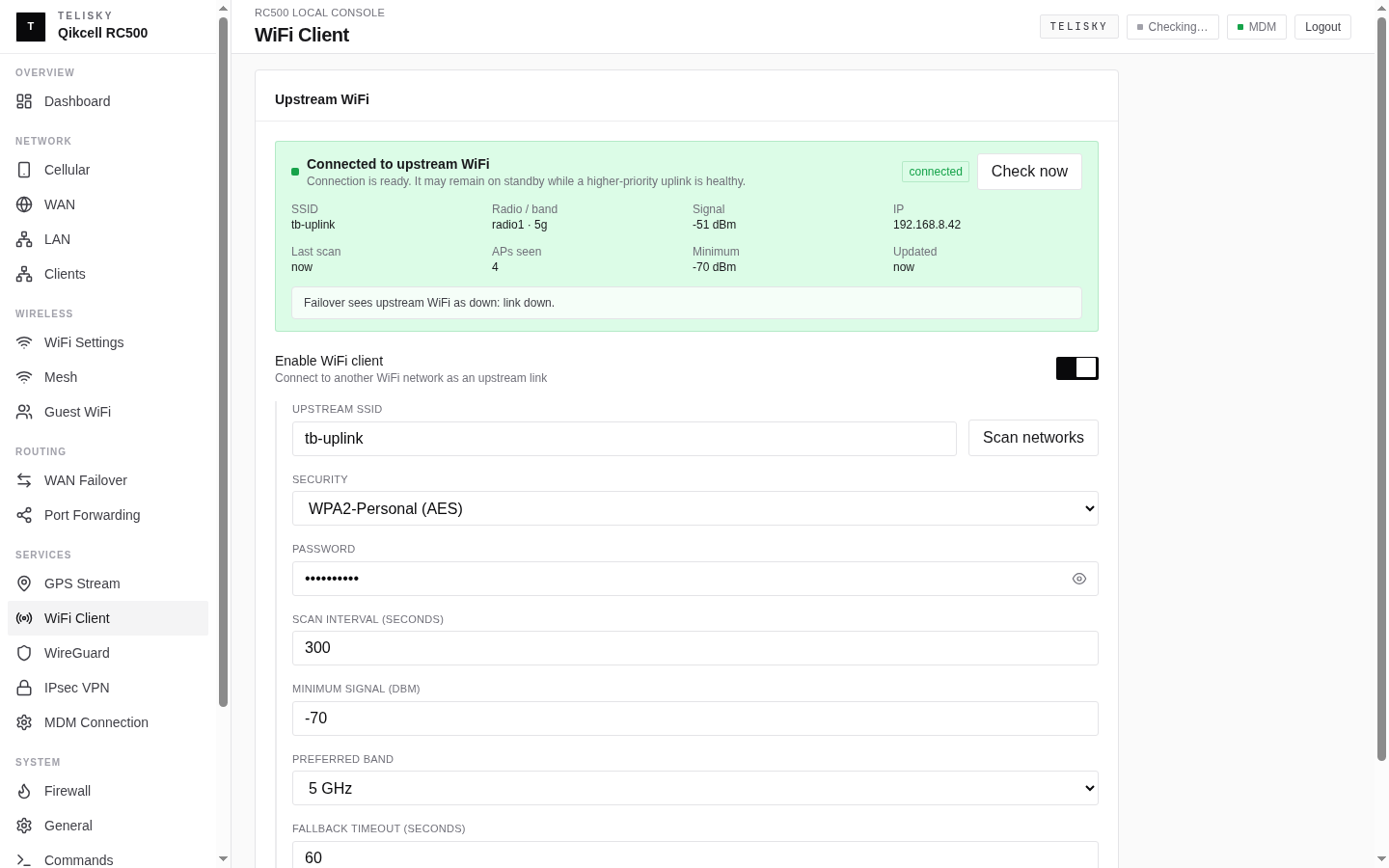
The RC500 can connect to an existing WiFi network and use it as an internet source. This is called upstream WiFi (or WiFi client mode). It is an uplink, not a WiFi range-extender - the router still serves its own LAN and WiFi to your devices, but reaches the internet over the WiFi network you connect it to.
Configure it under Services - WiFi Client.
When to use upstream WiFi
Section titled “When to use upstream WiFi”- A site already has WiFi internet (a venue, hotel, or office network) and you have no wired or cellular path.
- You want WiFi as one of the connections in the router’s failover order.
- You are setting up temporarily and the fastest internet available is an existing WiFi network.
Before you start
Section titled “Before you start”- Know the upstream network’s name (SSID) and password.
- Make sure the upstream network actually has working internet.
- Note that the upstream network’s owner controls it; if it goes down, your router’s internet over that path goes with it.
Connect to an upstream network
Section titled “Connect to an upstream network”- Open Services - WiFi Client.
- Enable WiFi client mode.
- Enter the upstream network’s SSID and password.
- Save and wait for the router to associate and get an address.
How it works with failover
Section titled “How it works with failover”Upstream WiFi appears as one connection in the router’s failover order. If you also have wired WAN or cellular, the router uses them in the priority you set and falls back to upstream WiFi as configured. See Network - Connection priority and failover.
Troubleshooting
Section titled “Troubleshooting”- Will not connect - re-check the SSID and password, and confirm the upstream network is in range.
- Connects but no internet - the upstream network itself may be down or may require a sign-in page the router cannot complete.
- Drops intermittently - weak signal to the upstream network; move the router closer or improve placement.
For wider connection problems, see Internet & Cellular.