
Router Settings
Open a device in the cloud portal to change the router settings that are safe to manage remotely. This page overlaps with the router’s local Web UI, but it is not a one-for-one copy: most cloud form changes use a review-and-apply flow and create jobs, while some per-device actions apply immediately; local changes are made on-site and apply directly to the router in front of you.
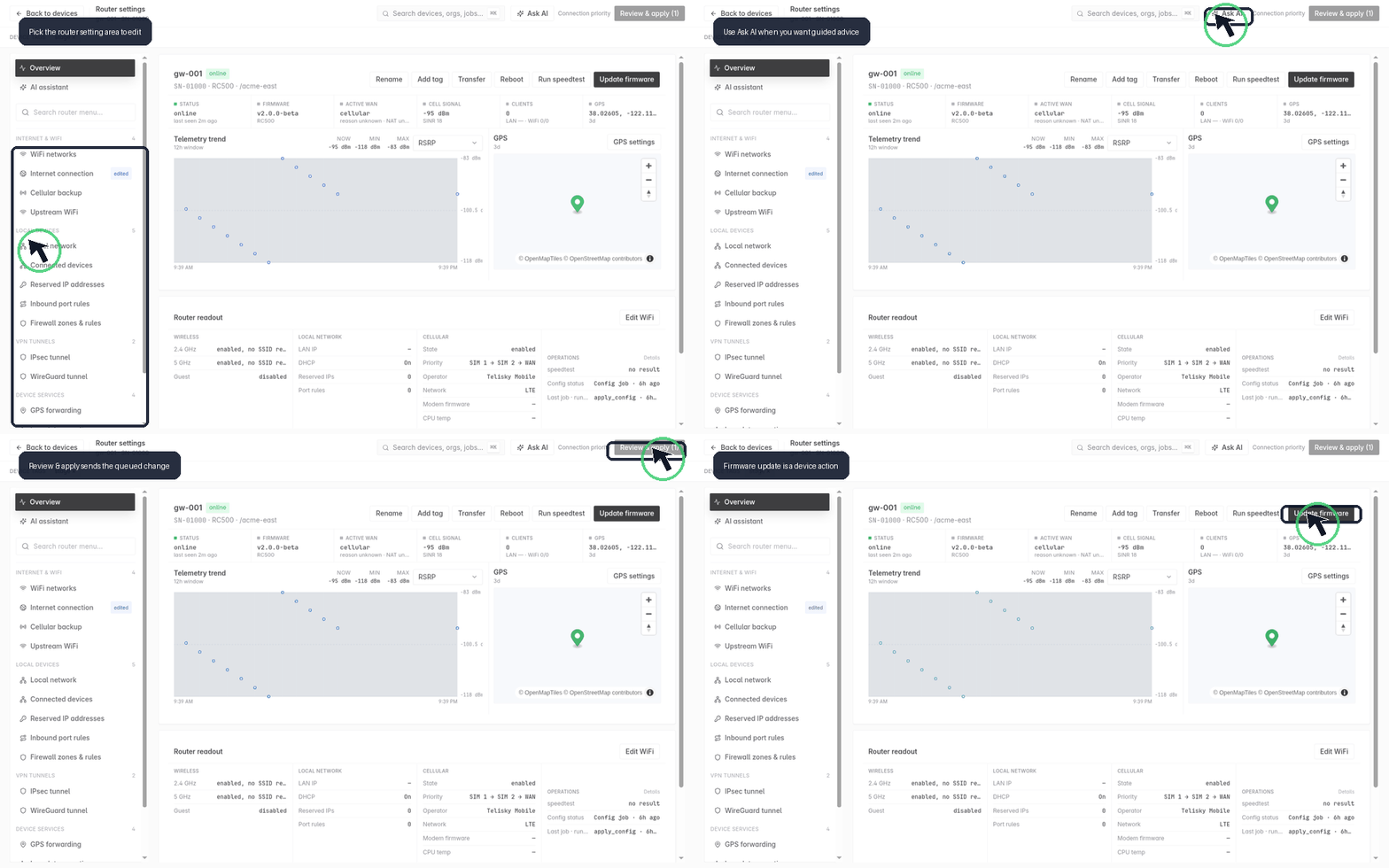
Where to make each change
Section titled “Where to make each change”| Task | Cloud portal | Local Web UI |
|---|---|---|
| WiFi, guest WiFi, and upstream WiFi | Guided fields on Router Settings | Wireless and Services pages for on-site setup |
| WAN, LAN, DHCP, failover, Ethernet port roles, and VLANs | Guided fields on Router Settings; sent as a job | Network - LAN and related Network/Routing pages; local VLAN and port-role apply is transactional (commit, reload, and device-side readback) and rolls back on mutation, commit, reload, or readback failure |
| Secondary APN policy | Capability-gated fields under Cellular; sent and tracked as a job | Network - Cellular for on-site configuration, start, stop, and live status |
| DNS, hostname, and timezone | Device name, time & DNS | System - General |
| Port forwarding | Guided inbound port rules that apply immediately to one device | Routing - Port Forwarding |
| Passthrough, cellular DMZ, or WAN bridge | Passthrough / bridge; reviewed and sent as a high-risk job | Network - Passthrough / Bridge |
| Firewall rules | Read-only visibility; use port forwarding for customer-editable inbound rules | Read-only firewall view |
| Remote WebUI over a private APN | Remote WebUI access on a device or in a config profile | Services - Remote WebUI |
| VPN tunnels | Guided WireGuard and IPsec sections | WireGuard and IPsec pages for on-site changes |
| Firmware update | Pick an approved cloud firmware option or approved upload when available | Upload a file or use a firmware URL on-site |
| Automatic connection diagnostics | Network diagnostics; runs remotely and records a device job | Network - Diagnostics; runs directly on-site |
Some support and API workflows are intentionally not general cloud form fields. Firmware update from an arbitrary URL and checksum is local Web UI or cloud API/support-led only; SMS, modem diagnostics, and similar low-level cellular tools should only be used when Telisky Support directs you. Secondary APN controls appear only for compatible RC500 firmware and modems.
Network diagnostics
Section titled “Network diagnostics”Use Network diagnostics to run the same bounded, read-only suite available in the local Web UI. The router checks the selected uplink and route, DNS resolution, gateway response, ping loss and latency, traceroute hops, TCP connection, and optional TLS handshake. Choose MDM connection to test the broker the router is actively using, Internet baseline for a public control, or Custom endpoint for a customer service and port.
The router must be online to start the suite from the cloud. Starting a run requires device write permission and creates a tracked job; loading the latest saved report does not start new probes. Runs are serialized, time-bounded, and rate-limited on the router. The suite does not bring interfaces up, change failover order, restart networking, or alter firewall policy.
Treat ping and traceroute as supporting evidence: carriers, routers, and firewalls may suppress ICMP while TCP and TLS continue to work. Use the report’s summary and per-layer cards to find the earliest actionable failure, then select Export JSON when a support case needs machine-readable evidence. See RC500 Troubleshooting - Run automatic network diagnostics for profile and result details.
Internet & WiFi
Section titled “Internet & WiFi”| Setting | What it controls |
|---|---|
| WiFi networks | WiFi names, passwords, bands, channels, transmit power, and guest WiFi |
| Internet connection | Wired Ethernet internet, cellular, upstream WiFi, and the order connections fail over |
| Cellular backup | Active SIM, APN, roaming, and carrier options for cellular |
| Secondary APN policy | One additional management/private APN, write-only credentials, IP family, and selected destination prefixes; ordinary traffic keeps using the primary default route |
| Upstream WiFi | Use another WiFi network as an internet uplink |
| Managed mesh | Secure RC500-to-RC500 mesh backhaul, button pairing, peer status, and uplink sharing |
Secondary APN jobs
Section titled “Secondary APN jobs”Use Secondary APN policy only when your carrier or Telisky deployment plan supplies a second APN and the exact destination prefixes that belong on it. The portal validates the APN, credentials, IP family, and CIDR prefixes before creating the job.
Starting or stopping the secondary APN can briefly interrupt cellular service while the router changes modem ownership. Keep the job page open until it succeeds, then confirm the router is still online. The device rolls back to native single-APN mode if it cannot preserve the primary connection. APN usernames and passwords are write-only and do not appear in telemetry, job results, or settings read-back.
For the on-site procedure and status meanings, see Cellular & SIM.
Local devices
Section titled “Local devices”| Setting | What it controls |
|---|---|
| Local network | The router’s local address, DHCP range, lease time, DNS, Ethernet port roles (LAN Ports 1–4), custom LAN and guest VLAN IDs, and one optional tagged network |
| Connected devices | A live list of devices on the router, with their addresses and signal |
| Reserved IP addresses | Keep important devices on the same local address |
| Inbound port rules | Forward inbound ports to a device behind the router |
| Firewall | A read-only view of the router’s firewall rules |
Inbound port rules are per-device actions, not profile settings. See Port Forwarding for the public-IP requirement, field-by-field setup, immediate-apply behavior, safe testing, and troubleshooting.
Port roles, LAN VLAN, guest VLAN, and tagged network
Section titled “Port roles, LAN VLAN, guest VLAN, and tagged network”Use the guided Local network fields when a site needs specific LAN or guest VLAN IDs, or one optional tagged network for equipment that expects a specific VLAN tag. The same capability is available on-site under Network - LAN in the Ethernet Port Roles and Tagged VLAN cards. Use those guided controls rather than editing low-level network files by hand.
- Guest VLAN ID, Ethernet port roles, and the optional tagged network live under Local network. Guest WiFi (SSID, password, enable) remains under WiFi networks.
- Set custom LAN VLAN and guest VLAN IDs only when your wiring plan requires them. IDs must be canonical whole numbers from
1through4094, and they must not match each other; the portal rejects a duplicate or non-canonical ID. - Access roles apply to LAN Ports 1–4 only. Only Port 4 may use the WAN role, and at least one port must remain on the LAN role. The dedicated WAN Port is not part of the access-role list.
- The optional tagged network is a single extra IEEE 802.1Q tag on selected LAN Ethernet ports—layer-2 membership only—not multi-VLAN trunk support, and not a third RC500 network with its own IP address, routing, or DHCP. Choose ports that currently show a normal LAN role (LAN Ports 1–3, or LAN/WAN Port 4 while it is still a LAN port). The tagged network ID, like LAN and guest IDs, must be a canonical whole number from
1through4094and cannot reuse the LAN or guest VLAN ID. - Cloud changes are queued jobs. Keep the job open until it reports success from confirmed device readback and apply. A submitted form alone is not proof that the router is running the new VLAN plan.
For the on-site field meanings and eligibility details, see RC500 Network - Ethernet port roles and guest VLAN.
Passthrough / bridge
Section titled “Passthrough / bridge”This section moves selected LAN ports away from the normal LAN. Choose the mode that matches the downstream equipment:
- Routed NAT creates a private client subnet behind the preferred uplink. Normal failover can still provide a fallback path.
- Cellular DMZ sends all unsolicited IPv4 traffic for one static carrier address to exactly one private client. It is 1:1 NAT, not a layer-2 cellular bridge. The plan must provide a static public IPv4 address; CGNAT does not work for inbound access.
- WAN bridge transparently bridges either the dedicated WAN Port or LAN/WAN Port 4 to selected LAN client ports. The selected wired uplink is unavailable as a normal routed uplink while the bridge is active.
The review shows the affected ports, client network, and DHCP settings. Preserve MDM remains required, but the router still needs an independent active management uplink. The cloud job applies an automatic five-minute safety timer, polls the router’s apply status, and confirms it automatically; treat the change as complete only when the job reports Succeeded. See RC500 Network - Passthrough and bridge modes for requirements and Local Web UI recovery guidance.
VPN tunnels
Section titled “VPN tunnels”| Setting | What it controls |
|---|---|
| IPsec tunnel | A site-to-site connection to a customer firewall or collector |
| WireGuard tunnel | A WireGuard VPN profile and peer |
Remote WebUI over a private APN
Section titled “Remote WebUI over a private APN”Remote WebUI access is disabled by default. Enable it only when a private-APN or customer network routes management traffic to the RC500’s cellular interface.
- Enter every permitted source as an explicit canonical IPv4 CIDR from
/16through/32. A host uses/32;0.0.0.0/0, broad prefixes, malformed addresses, and addresses with host bits set are rejected. - The generated firewall rule accepts only TCP 443 on the cellular interface currently reported by
cellular0. It does not open HTTP 80, SSH, or other ports. - The RC500 cannot prove that traffic crossed IPsec. It trusts only the cellular ingress interface and the source CIDRs you configured. Do not use an RFC1918 range merely because it looks private.
- Apply the setting directly to one device, through a config profile to a group or the exact selected organization, or through a staged rollout. Organization targeting does not include child organizations.
The HTTPS listener still requires the router’s local WebUI credentials. Disable the setting after the maintenance window when persistent access is not required.
Device services
Section titled “Device services”| Setting | What it controls |
|---|---|
| GPS forwarding | Send live location to a CAD, AVL, or telemetry collector |
| Low data reporting | Reduce reporting traffic for small cellular plans |
| Device name, time & DNS | Hostname, timezone, and upstream DNS settings |
| Local Web UI credentials | The username and password for the router’s local Web UI |
Review before applying
Section titled “Review before applying”Router settings affect a live device, and some of them affect how it connects.
- Changes can interrupt connectivity - especially internet, cellular, DNS, VLAN, Ethernet port-role, and VPN settings.
- For a critical router, apply one section at a time and confirm the device is still reachable before moving on.
- Passthrough, bridge, and VLAN/port-role changes can move an Ethernet port out of the normal LAN or clear a tagged network that depended on that port. Keep an independent management path and wait for the apply job to report Succeeded before relying on the new path.
- Most reviewed cloud settings create a job you can track. Immediate actions, including inbound port rules, report success or an apply warning on the page and may also create a job depending on the device connection type. If a setting does not take effect, see Config Did Not Apply.