
Cloud Management Overview
The Telisky cloud portal at cloud.telisky.com is where your team monitors and manages RC500 routers after they can reach the internet.
Use the Start here checklist first if you are setting up your first router. Come back to this page when you want to understand what the portal does day to day.
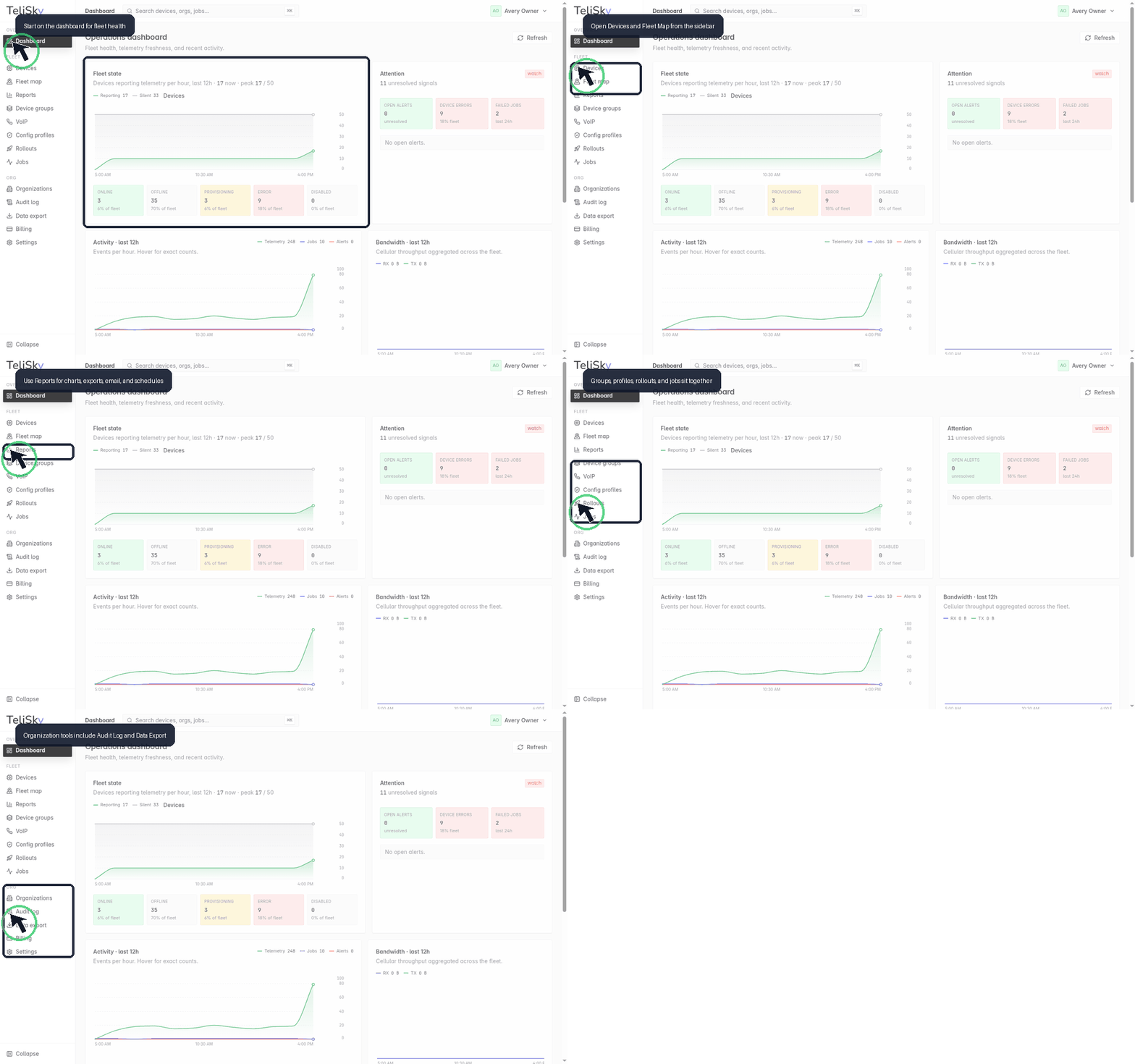
What the cloud portal does
Section titled “What the cloud portal does”The portal is your remote operations center. Routers report their status to it over the internet. Your team uses it to answer practical questions:
- Is my router online? Check Dashboard or Devices for status and last-seen time.
- Which routers need attention? Review alerts, failed jobs, and devices marked offline or silent.
- What changed recently? Review Jobs and the Audit Log.
- Can I make a router change remotely? Use router settings, config profiles, rollouts, and firmware update pages when your role allows it.
- Can I share operational information? Use reports and data export when those features are enabled for your organization and your role allows them.
Cloud portal vs local Web UI
Section titled “Cloud portal vs local Web UI”Most teams use both management surfaces. They overlap on common settings, but they are not exact copies of each other: the cloud is for remote fleet work, jobs, reports, users, and guided changes; the local Web UI is for on-site setup, recovery, and local diagnostics when the router cannot reach the cloud.
| Surface | Use it when | Avoid using it for |
|---|---|---|
| Cloud portal | You are remote, checking many routers, reviewing history, inviting teammates, scheduling reports, or sending guided changes to routers. | Fixing a router that has no working internet path. |
| Local Web UI | You are physically near one router, the router cannot reach the cloud, or you need to inspect local WAN, cellular, DNS, or firmware update status. | Organization users, fleet reports, rollouts, or other cloud-only account work. |
See Cloud Portal vs Local Web UI for examples of where to make common changes.
What each role usually does
Section titled “What each role usually does”Your role controls which pages and actions you can use.
| Role | Plain-language meaning |
|---|---|
| Owner | Manages the organization, team access, routers, billing or account settings, and day-to-day operations. |
| Admin | Manages routers, settings, jobs, and most operational work for the organization. |
| Member | Helps operate routers and review device activity, with fewer account-management actions than an Admin. |
| Viewer | Monitors router health and reports without changing settings. |
| Installer | Has limited field access to confirm whether a router is connected during installation. Installers do not need your cloud password. |
If you do not see a page or action, ask an Owner or Admin whether your role should have access.
First pages to learn
Section titled “First pages to learn”- Dashboard - the fastest view of fleet health.
- Devices - the router list and router detail pages.
- Jobs - actions sent to routers and whether they succeeded.
- Reports - operational summaries and exports when available to your organization.
- Users & Roles - invite teammates and understand access levels.
When something looks wrong
Section titled “When something looks wrong”Start with the customer-visible symptom:
- Router does not appear or stops reporting: Router offline or silent.
- Internet or cellular is not working: Internet & Cellular.
- A change failed: Config Did Not Apply.
- You need help from Telisky: Contact Telisky Support.