
Config Profiles
A config profile is reusable router configuration you build once with guided forms and apply to one device, a group, an exact organization, or a staged rollout. Open Config Profiles in the cloud portal.
Profiles save you from setting the same options on each router by hand. Build the settings you want once, then apply that profile wherever you need it.
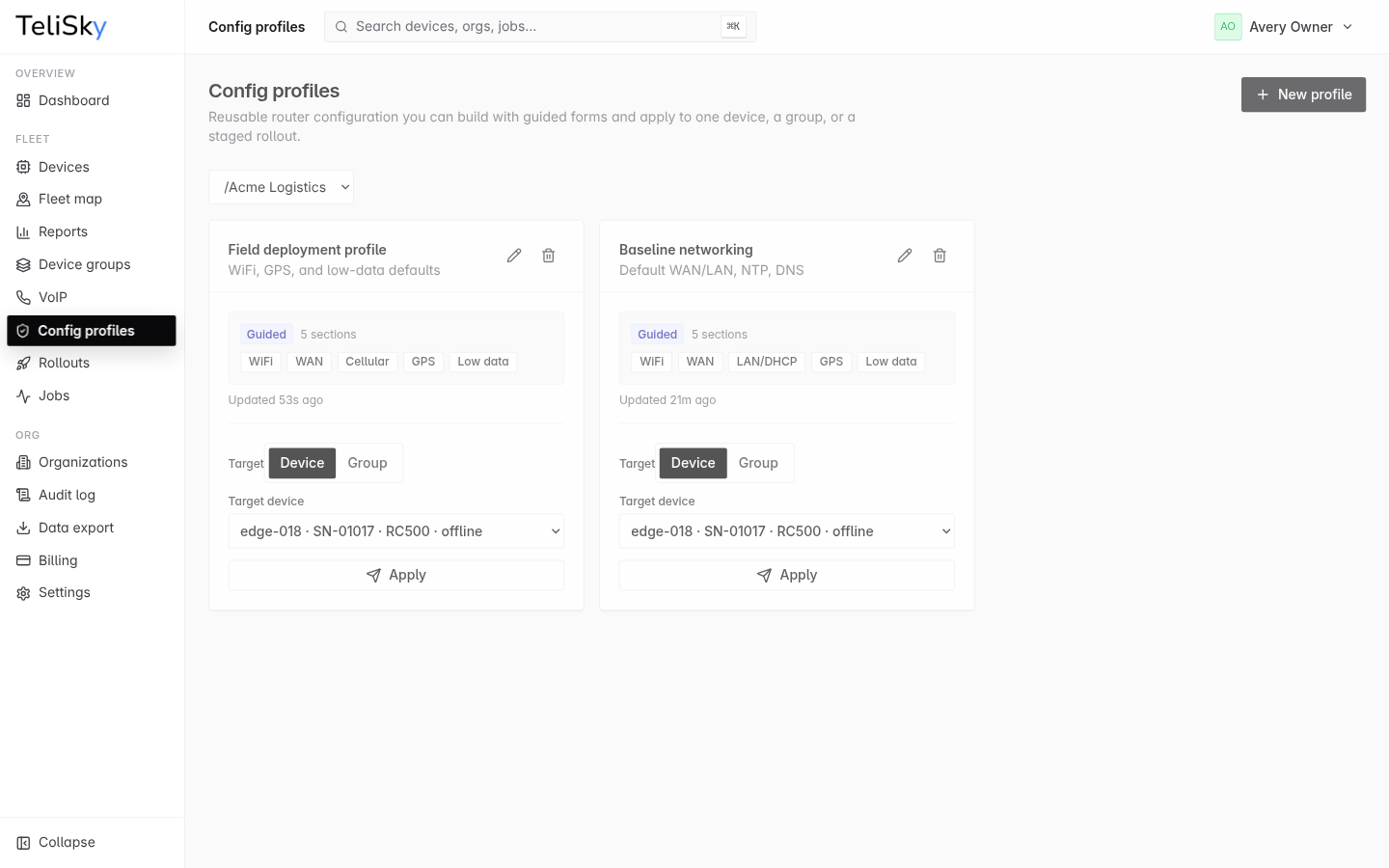
Create a profile
Section titled “Create a profile”- Open Config Profiles and create a profile with a name and description.
- Use the guided forms to set the router options you want from the Router Settings catalog.
- Save the profile.
For private-APN remote management, open Remote WebUI access, enable HTTPS access, and enter the approved canonical IPv4 source CIDRs. Use /32 for one management host or /16 through /32 for a subnet. The form rejects 0.0.0.0/0, broader prefixes, malformed values, and CIDRs with host bits set.
Edit a profile
Section titled “Edit a profile”Open a profile to change its settings or description. Editing a profile does not change devices on its own - you re-apply it to push the new settings.
Apply to a device
Section titled “Apply to a device”Apply a profile to a single device when you want one router to match the profile. The change becomes a job on that device.
Apply to a group
Section titled “Apply to a group”Apply a profile to a group to push the same configuration to every device in it at once. Each device gets its own job.
You can also target the exact selected organization. Immediate organization application creates one job per device in that organization, does not include child organizations, and is bounded by the deployment’s immediate-apply limit (50 devices by default). If the target exceeds the active cap, the error reports that cap; use a rollout for the larger fleet. An organization with no devices completes with zero dispatched jobs.
Use in a rollout
Section titled “Use in a rollout”For larger fleets, apply a profile through a rollout so it reaches devices in small waves and you can catch problems early.
Choose an organization target for a larger exact-organization deployment. The rollout snapshots that organization’s current device IDs when it is created, excludes child organizations, rejects an empty target, and sends the snapshot in canary and wave batches.
Common safe changes
Section titled “Common safe changes”Some profile changes are low-risk and good first candidates:
- WiFi network name and password.
- Device name (hostname) and timezone.
- Low-data reporting for small cellular plans.
Changes that affect how a device connects - internet path, cellular, or VPN - carry more risk. Apply those carefully, and to critical devices one at a time. See Config Did Not Apply if a change does not take effect.
Remote WebUI access is security-sensitive rather than a routine low-risk change. It is disabled by default and opens only TCP 443 on the runtime cellular interface for the explicit source CIDRs. The RC500 cannot verify that traffic crossed upstream IPsec, so confirm source preservation and use the smallest management ranges before deployment.