
Devices
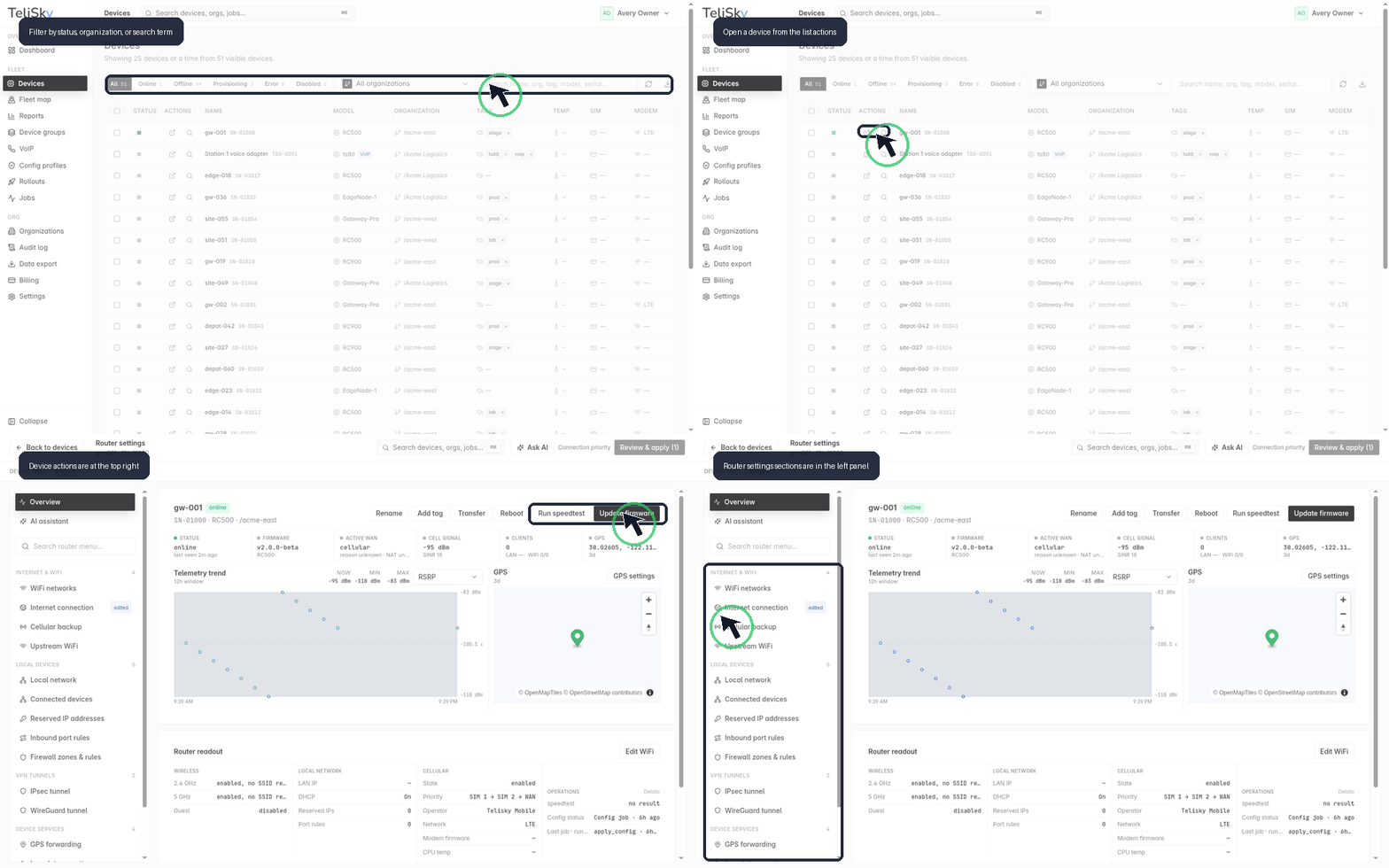
The Devices page lists every device visible to your account and is the way into each device’s detail page.
Device lifecycle
Section titled “Device lifecycle”graph LR A[Prepared / assigned] --> B[Attached] --> C[Online] --> D[Managed] --> E[Updated]
A device is prepared for your organization before shipment or attached during setup with an MDM attach code. It comes online when it reaches the cloud, is managed day to day, and is updated as you apply configuration and firmware over time.
Adding or attaching a router
Section titled “Adding or attaching a router”If a router does not already appear in Devices, your setup may use a one-time MDM attach code. See Attach a router to the cloud before troubleshooting the router as offline.
Device list
Section titled “Device list”The list shows each device’s name and serial, model, status, firmware, and last-seen time, along with at-a-glance signal and connection details. Use it to spot problems quickly and to open any device.
Device detail
Section titled “Device detail”Open a device to see:
- Status - online/offline, last seen, firmware, and active connection.
- Telemetry - connection, signal, and system health over time.
- Connected clients - the devices currently using the router.
- Settings - the device’s router settings.
- Jobs - the actions sent to the device and their results.
Device status
Section titled “Device status”| Status | Meaning |
|---|---|
| Online | The device is reporting normally |
| Offline | The device has not reported recently |
| Provisioning | The device is being set up |
| Error | The device reported a problem |
| Disabled | The device has been turned off in management |
If a router shows offline but you believe it is running, see Router offline or silent.
Tags and filters
Section titled “Tags and filters”Filter the list by status, and search by name, serial, model, or organization. Add tags to devices to organize them - for example by site or customer - and to build smart groups.
Device actions and jobs
Section titled “Device actions and jobs”From a device you can run the actions your role and the current device state allow, such as rebooting the router, running a speed test, opening router settings, or starting a firmware update. Remote actions become jobs you can track to success or failure.
Do not assume every local maintenance action is available from the cloud. Factory reset and low-level diagnostic actions are intentionally limited; contact Telisky Support before resetting a production router or sharing local diagnostic exports.
Deleting a device
Section titled “Deleting a device”You can delete a device record from its detail page.