Skip to content

User Management & RBAC

The MDM platform implements role-based access control (RBAC) to manage what each user can see and do.

Roles form a hierarchy where higher roles inherit all permissions of lower roles:

Super Admin (Platform Operator)
└── Owner (Organization Owner)
└── Admin (Organization Admin)
└── User (Standard User)
└── Viewer (Read-Only)
  • View device list and status
  • View telemetry and GPS data
  • View fleet map
  • View alert history
  • View configuration (read-only)

Everything Viewer can do, plus:

  • Acknowledge alerts
  • Resolve alerts
  • Trigger device commands (reboot, sync)
  • View configuration profiles

Everything User can do, plus:

  • Create, edit, delete devices
  • Create and deploy configuration profiles
  • Deploy firmware updates
  • Manage alert rules
  • Create and manage geofences
  • Invite users (up to their own role level)

Everything Admin can do, plus:

  • Manage all users in the organization
  • Delete users
  • Change user roles
  • Modify organization settings
  • View billing and usage

Everything Owner can do, plus:

  • Access all organizations
  • Create/delete organizations
  • Assign devices across tenants
  • Access operations console
  • View platform-wide metrics
  • Manage firmware uploads

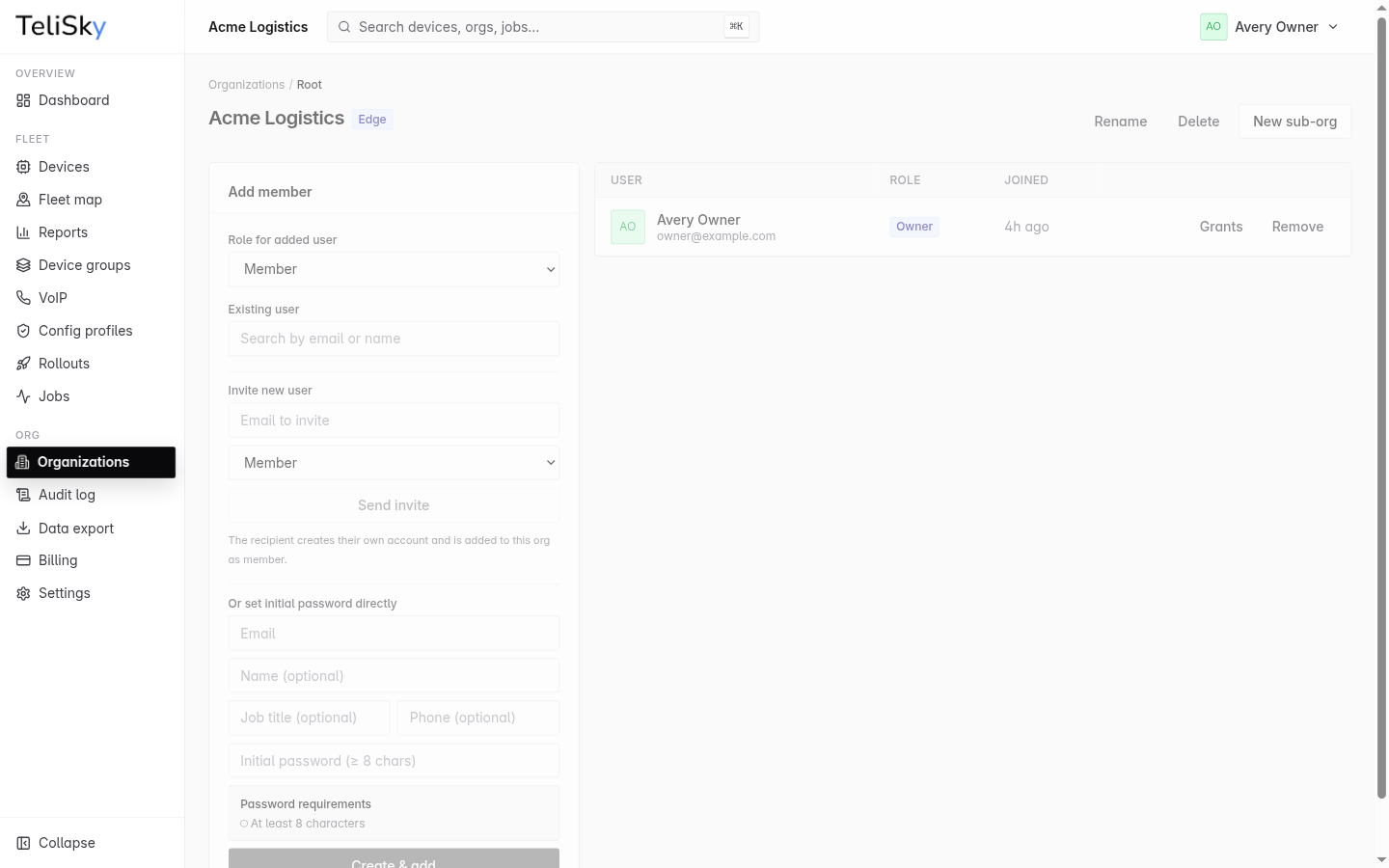
Admins and Owners can invite new users:

  1. Navigate to Users → Invite
  2. Enter the user’s email address
  3. Select a role (cannot exceed your own role)
  4. Click Send Invitation
  5. User receives an email with a signup link
  6. After signup, they’re added to your organization with the assigned role
  1. Navigate to Users
  2. Click on a user
  3. Modify:
    • Display name
    • Role (Owners can change roles)
    • Active/inactive status
  4. Click Save
  1. Navigate to Users
  2. Click the user to remove
  3. Click Remove User (requires Owner role)
  4. Confirm removal
MethodDescription
Email + PasswordStandard login with bcrypt-hashed passwords
API TokenFor programmatic access (no browser required)
  • Minimum 8 characters
  • Must include uppercase, lowercase, and a number
  • Passwords are hashed with bcrypt (10+ rounds)
  • Sessions use HttpOnly JWT cookies
  • Token expiry: 24 hours (configurable)
  • Refresh tokens extend sessions without re-login
  • Single active session per user (new login invalidates old)

For programmatic access (scripts, integrations):

  1. Navigate to Settings → API Tokens
  2. Click Generate Token
  3. Name the token and select scopes:
    • devices:read — Read device data
    • devices:write — Create/modify devices
    • telemetry:read — Query telemetry
    • config:write — Push configuration
    • firmware:deploy — Deploy updates
  4. Set expiration (optional)
  5. Copy the token (shown only once)
Terminal window
curl -H "Authorization: Bearer YOUR_TOKEN" \
https://mdm-api.telisky.com/api/devices

All user actions are logged:

EventLogged Data
LoginUser, IP, timestamp, success/failure
Device actionUser, device, action, result
Config changeUser, profile, devices affected
User managementWho changed what for whom
Firmware deployUser, version, target devices

Access the audit log at Settings → Audit Log (Owner/Admin).