
Port Forwarding
Port forwarding lets someone on an external network reach one service on a device behind an RC500. In the cloud portal, it is called an inbound port rule.
Use this guide to configure one router. Inbound port rules are per-device only: they cannot be added to a Config Profile, device group, or rollout.
How a rule works
Section titled “How a rule works”graph LR A[External client 203.0.113.10] -->|TCP 8443| B[RC500 public WAN address] B -->|Forward| C[Camera 192.168.4.20:443]
In this example, a trusted external client connects to TCP port 8443 on the router. The RC500 forwards that connection to a camera at 192.168.4.20 on TCP port 443.
A rule changes only the destination address and port. It does not add encryption, authentication, or a public IP address to the internet connection.
Before you start
Section titled “Before you start”You need:
- an RC500 that is online in Telisky Cloud and ready to receive settings;
- permission to apply configuration to the device;
- the local IP address of the device that will receive the traffic;
- the service’s protocol and port, such as TCP
443for an HTTPS camera; - a publicly reachable IPv4 address on the RC500’s active internet connection; and
- preferably, the public source IP or CIDR that should be allowed to connect.
Give the destination device a reserved IP address before creating the rule. If its DHCP address changes later, the rule will still point to the old address.
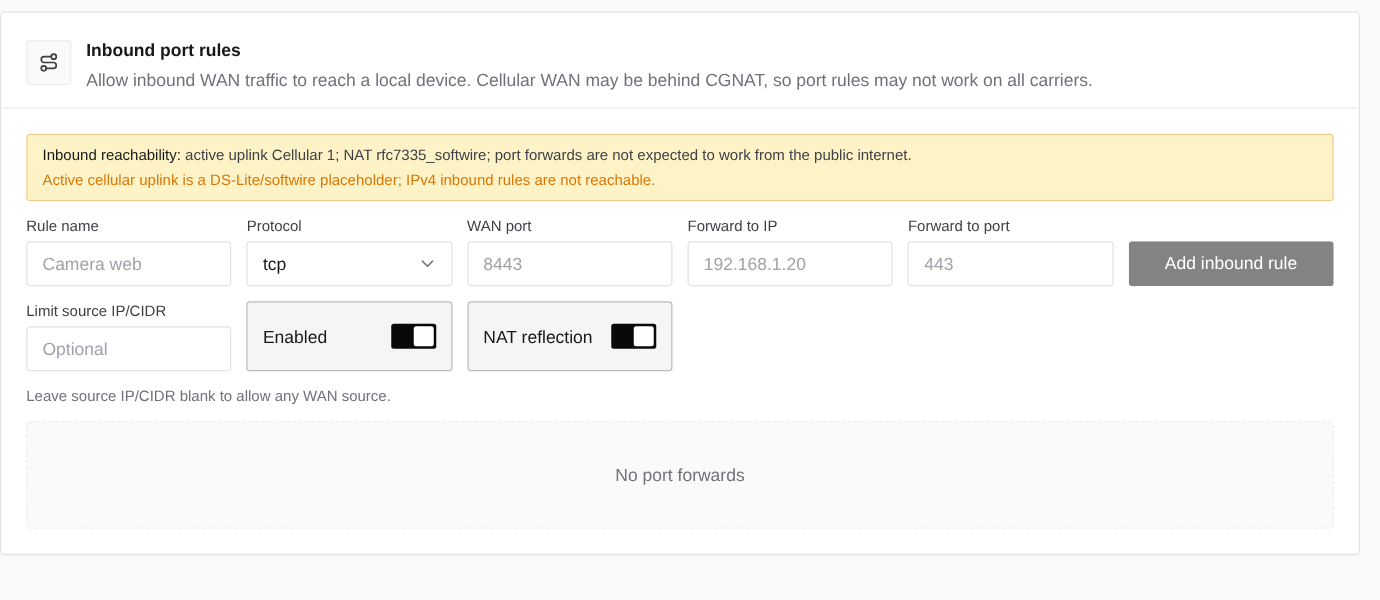
Add an inbound port rule
Section titled “Add an inbound port rule”- In Telisky Cloud, open Devices and select the RC500.
- Open Router settings.
- Under Local devices, select Inbound port rules.
- Read the Inbound reachability banner. Continue only when the active uplink has a publicly reachable address.
- Fill in the rule:
| Field | What to enter | Example |
|---|---|---|
| Rule name | A short description of the service. | Camera HTTPS |
| Protocol | tcp, udp, or tcp udp. Match the service exactly. | tcp |
| WAN port | The port an external client will connect to on the RC500. | 8443 |
| Forward to IP | The destination device’s reserved LAN address. | 192.168.4.20 |
| Forward to port | The port on which the destination service listens. | 443 |
| Limit source IP/CIDR | The one external address or narrow network allowed to connect. Leave blank only when every internet source must be allowed. | 203.0.113.10/32 |
| Enabled | Turn on to make the rule active. | On |
| NAT reflection | Turn on when devices inside the LAN must reach the service through the router’s WAN address. | On |
- Select Add inbound rule.
- Wait for Port forward added. If the portal shows Apply warnings, treat the rule as not fully applied and resolve the warning before testing.
- Confirm the new row shows the expected protocol, WAN port, destination, and enabled state.
The portal accepts one WAN port and one destination port per rule. Port ranges are not available in this form; create separate rules for separate ports.
Test the rule
Section titled “Test the rule”Test from a device that is not connected to the RC500’s LAN or WiFi. A phone with WiFi turned off is usually the simplest test client.
- Find the public IPv4 address assigned to the RC500’s active uplink.
- Connect to that address using the WAN port, not the destination service port. For the example above, use
https://PUBLIC-IP:8443. - Confirm the destination service responds and requires its normal authentication.
- If you set Limit source IP/CIDR, repeat from an address outside that range and confirm it is blocked.
Testing from inside the RC500’s LAN exercises NAT reflection rather than the normal internet path. A successful LAN test does not prove that CGNAT or an upstream firewall allows inbound internet traffic.
Edit, pause, or remove a rule
Section titled “Edit, pause, or remove a rule”Existing rules appear below the form.
- Edit loads the rule into the form. Change it, then select Save inbound rule.
- Disable pauses the rule without losing its values. Use this for temporary maintenance or troubleshooting.
- Enable restores a disabled rule.
- Delete removes the rule from the router.
These actions also apply immediately. Disable an unused rule instead of leaving a service exposed while deciding whether to remove it.
Keep the exposed service safe
Section titled “Keep the exposed service safe”- Set Limit source IP/CIDR to a trusted
/32address or the narrowest practical network. Blank means any WAN source. - Expose only the port the application needs. The MDM blocks another rule that overlaps the same WAN port and protocol.
- Use TLS and strong application credentials. A high external port reduces background scans but is not an access control.
- Do not expose the RC500’s own SSH or local Web UI with a general port-forwarding rule. Use Remote WebUI over a private APN or a VPN for router administration.
- Disable or delete the rule as soon as it is no longer required.
- Rule changes are recorded in the organization’s audit log.
Fix common problems
Section titled “Fix common problems”| Problem | What to check |
|---|---|
| The reachability banner says the rule will not work | The active connection is behind CGNAT, DS-Lite, or another upstream NAT. Obtain a public/static IPv4 address or use a VPN. Changing the rule will not fix this. |
| Add inbound rule is unavailable | Wait for live router settings to load. Confirm the RC500 is online and your role can apply device configuration. |
| The portal reports an overlapping WAN port | Another enabled or disabled rule uses the same WAN port and at least one of the same protocols. Edit the existing rule or choose a different WAN port. |
| The rule exists but the service times out | Confirm the public IP, test from an external network, check the service is listening on the destination IP/port, and check the destination device’s own firewall. |
| The rule worked and then stopped | The destination device may have received a different DHCP address. Reserve its IP and update the rule if needed. |
| Only TCP or only UDP works | The protocol must match the service. Choose tcp udp only when the application genuinely needs both. |
| A source-limited rule blocks the expected client | Confirm the client’s current public egress address and CIDR. Do not enter its private LAN address. |
| Testing works from the LAN but not from the internet | NAT reflection proves only the local hairpin path. Re-check the public IPv4 address, CGNAT status, carrier/ISP filtering, and external source restriction. |
| The portal shows Apply warnings | The rule was saved but the router reported a reload problem. Do not assume it is active; retry after the router is healthy or contact Telisky Support with the warning text. |
| A rule is visible but Edit or Delete is refused | The rule may have been created in the Local Web UI. On some RC500 connection types, cloud MDM can change only rules it created. Edit or remove that rule under Routing - Port Forwarding in the Local Web UI. |