
Onboarding Checklist
Use this as a printable companion to the First router setup checklist. It keeps the first deployment focused on account access, router internet, cloud connection, and support handoff.
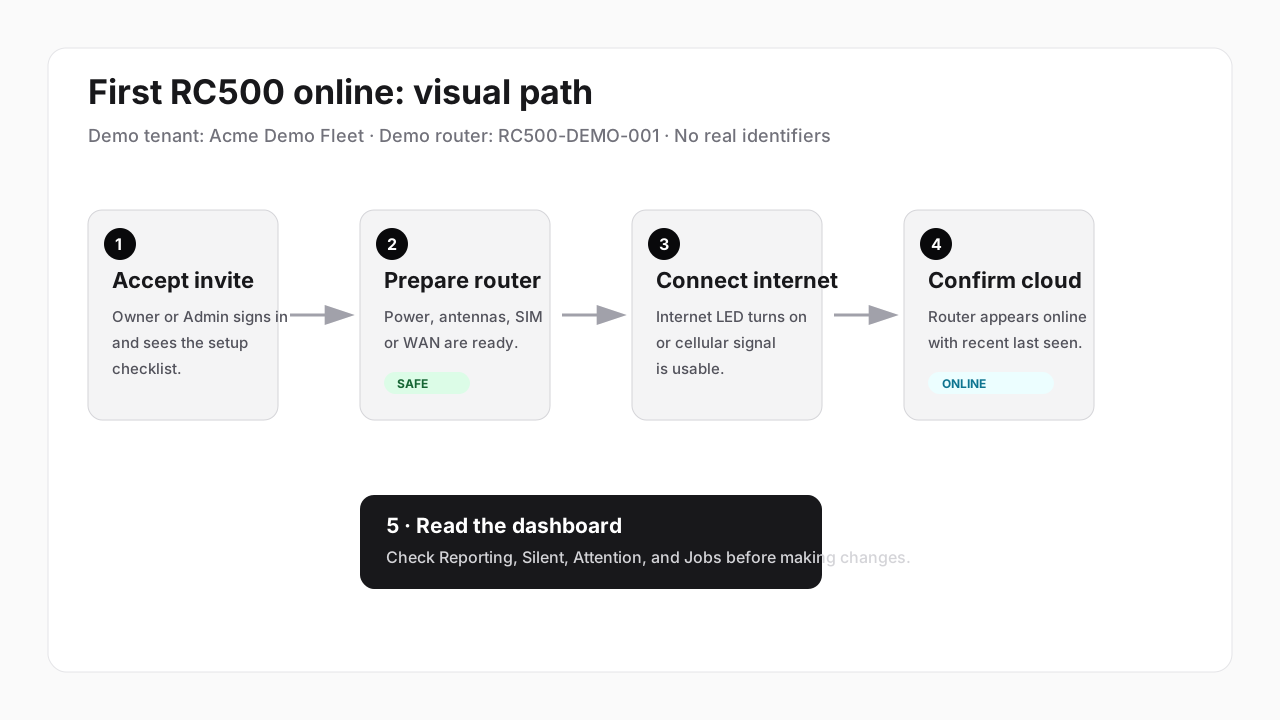
Account and organization
Section titled “Account and organization”- If this is the first customer account, create the Owner account using Telisky’s first-owner setup instructions.
- If you received an invite, accept it from the inbox where it was sent.
- Sign in to cloud.telisky.com.
- Confirm the organization or site name is correct.
- Confirm your role is appropriate for what you need to do.
Responsibility handoff
Section titled “Responsibility handoff”| Task | Customer Owner or Admin | Installer | Telisky |
|---|---|---|---|
| Account access | Owns Telisky cloud portal access and invites teammates. | Uses installer access only. | Resends missing, expired, wrong-organization, or wrong-role invites. |
| Physical setup | Confirms site, router label, and internet plan. | Connects antennas, SIM if used, WAN if used, and power. | Provides deployment packet and support channel. |
| Cloud confirmation | Confirms the router in Devices and Dashboard. | Sends the connection result and time checked. | Investigates routers that do not appear or show stale status. |
Router preparation
Section titled “Router preparation”- Match the router label or work-order identifier to the deployment plan.
- Connect antennas.
- Insert the active SIM if cellular will be used.
- Connect the WAN cable if wired internet will be used.
- Connect power and wait for startup.
Internet path
Section titled “Internet path”- Confirm the Internet indicator turns on, or confirm connectivity in the local Web UI.
- For cellular, confirm SIM activation, APN if required, and signal quality.
- Record whether the router should use wired internet, cellular, or both.
Cloud confirmation
Section titled “Cloud confirmation”- Open Devices in the Telisky cloud portal.
- Find the router by the expected name, label, or work-order identifier.
- Confirm status is online or last seen is recent.
- Open the router detail page.
The first cloud checkpoint is complete when Dashboard shows recent router reports, no unexpected attention cards, and no failed setup jobs for the new router.
First health check
Section titled “First health check”- Open Dashboard.
- Confirm the router is reporting and not marked as urgent attention.
- Check recent jobs for failed setup actions.
- Save the router name or label your team will use when asking for help.
Support handoff
Section titled “Support handoff”- If one step is blocked for more than 15 minutes, stop changing settings and contact Telisky Support with the organization or site name, router label or work order, step blocked, and approximate time.
- Bookmark Router offline or silent.
- Bookmark Contact Telisky Support.
- Do not share passwords, tokens, SIM identifiers, raw logs, or full location details in public channels.