
Installer Handoff
Use this page when an installer is helping bring an RC500 online. The installer only needs enough information to verify that the router is reachable; they do not need customer credentials or broad organization access.
Customer admin checklist
Section titled “Customer admin checklist”Before the installer arrives:
- Confirm the router should be installed for the correct organization or site.
- Share the router label information or work order reference the installer needs.
- Share any enrollment or install-day instructions supplied by Telisky.
- Do not share your Telisky sign-in password, API tokens, billing access, or another user’s account.
Installer checklist
Section titled “Installer checklist”The installer should:
- Power on the router and connect WAN or cellular service.
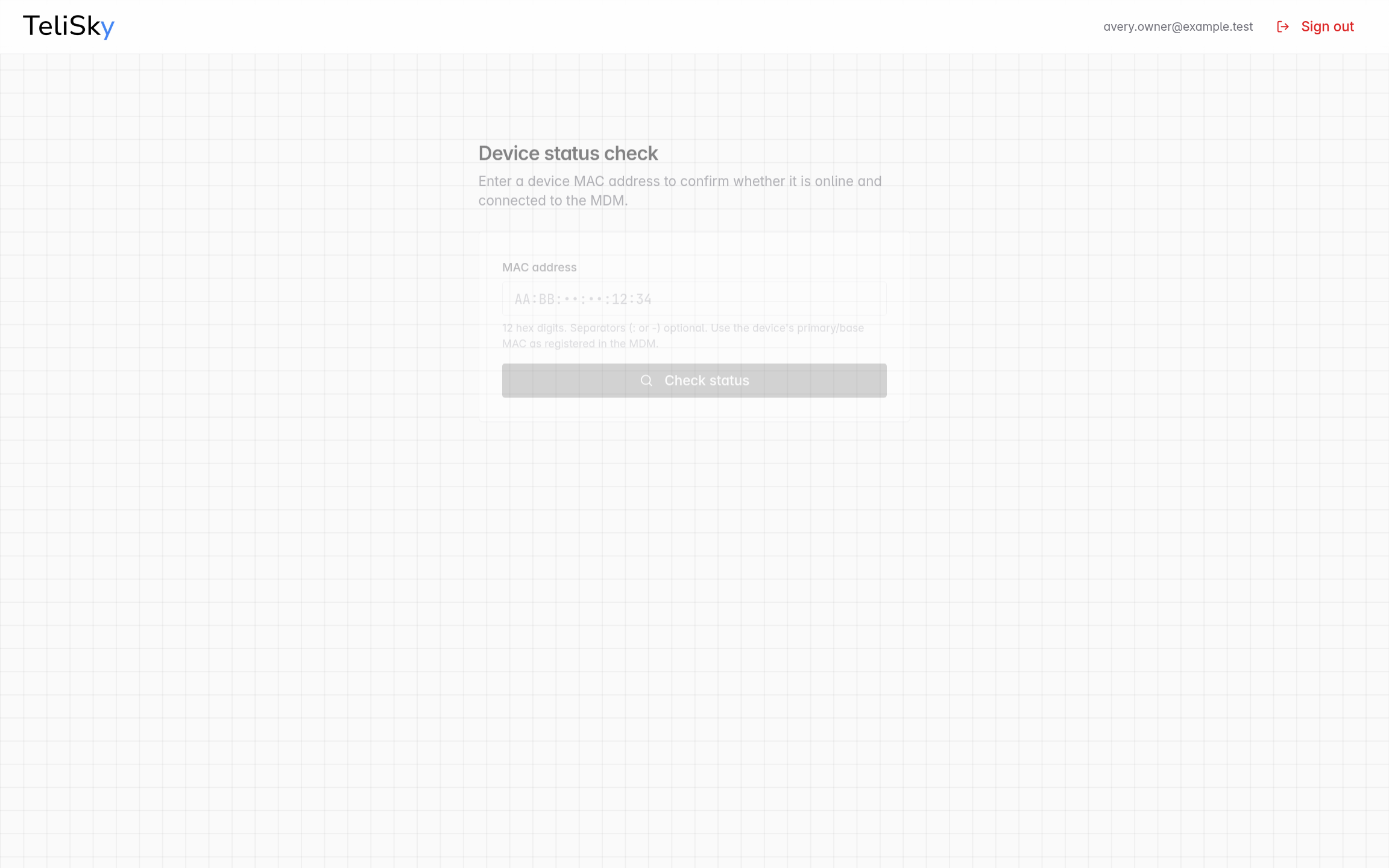
- Open the installer status check page provided by Telisky.
- Enter the MAC address from the router label or work order.
- Confirm whether the router is found, online, and connected to MDM.
- Send the customer a short handoff message when the router is connected.
What each status means
Section titled “What each status means”| Status | Plain-language meaning | Next action |
|---|---|---|
| Found | Telisky recognizes the MAC address as an expected router. | Continue checking power and internet. |
| Connected to MDM | The router recently checked in to Telisky cloud management. | Customer can refresh Devices or Dashboard. |
| Online | The router appears reachable from the installer’s status check. | Send the handoff message to the customer. |
| Not found | The MAC address was not recognized. | Recheck the label/work order and contact Telisky if it still fails. |
Customer confirmation
Section titled “Customer confirmation”After the installer says the router is connected:
- Open Devices in the cloud portal.
- Find the router name or demo/site label you expect.
- Confirm last seen is recent and status is online or reporting.
- Open the router and review its basic health before making changes.
If the router still does not appear after five minutes, use Device Offline and send support the timestamp, router label reference, LED state, and screenshots. Do not send passwords, tokens, or raw logs unless Telisky Support asks through an approved support channel.