
Command Line Interface
The mdm command line interface gives you everything the cloud portal can do, from a terminal. It is built for people running quick fleet checks, for scripts and CI pipelines, and for AI agents that operate your fleet on your behalf.
Use this page to go from nothing to a working mdm command in about two minutes.
Requirements
Section titled “Requirements”- Node.js 20 or newer on your machine (
node --versionto check; install from nodejs.org if needed). - macOS or Linux (on Windows, use WSL).
- A Telisky cloud account with access to at least one organization.
1. Install the CLI
Section titled “1. Install the CLI”Run the installer:
curl -fsSL https://mdm-api.telisky.com/cli/install | shThe installer downloads a single file, verifies its checksum, and installs the mdm command under ~/.local/bin. No root access is needed. If your shell cannot find mdm afterwards, add ~/.local/bin to your PATH.
To upgrade later, run the same command again. To install somewhere else, set MDM_INSTALL_DIR first (for example MDM_INSTALL_DIR=/opt/tools).
2. Create an access key
Section titled “2. Create an access key”The CLI signs in with an access key — a scoped credential you create in the cloud portal. A key can do only what its scopes allow, so give automation exactly the access it needs and nothing more.
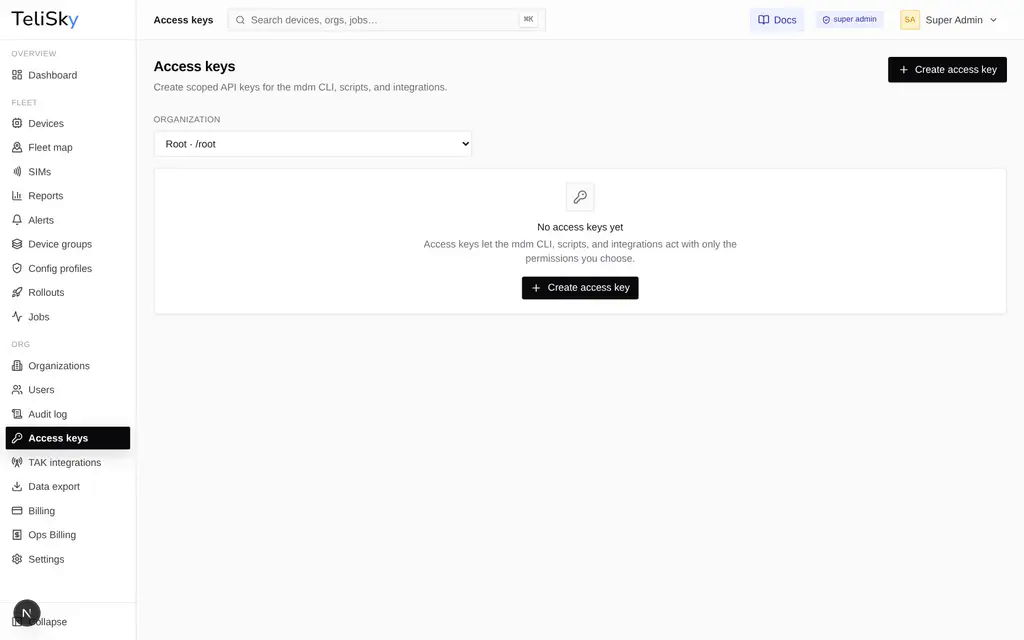
- In the portal, open Access keys in the left sidebar (under Org).
- Pick the organization the key should belong to.
- Select Create access key.
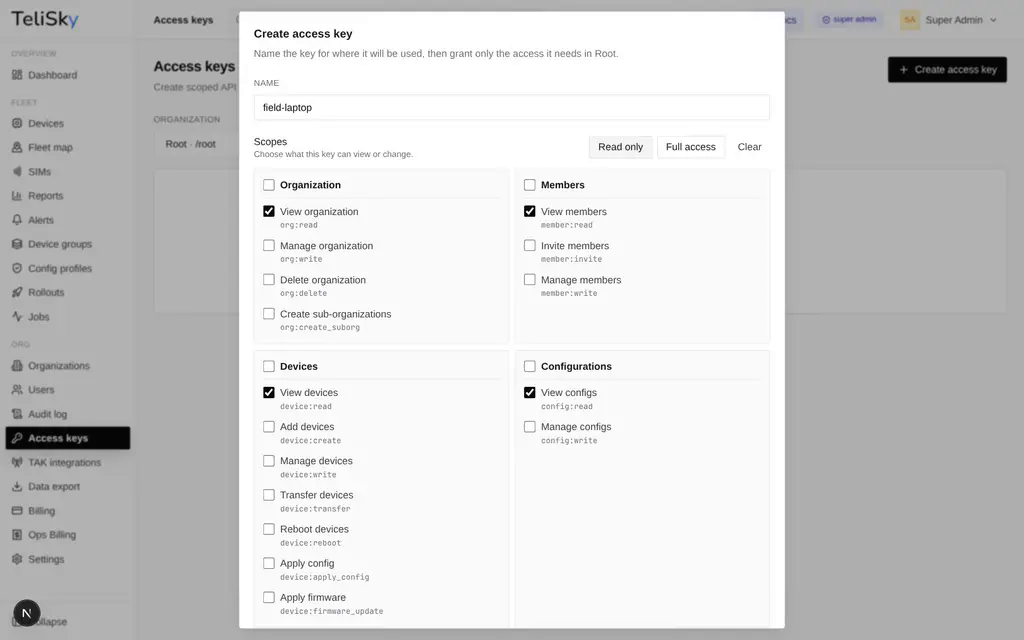
- Name the key for where it will run (for example
field-laptoporci-pipeline) and choose its scopes. Read only is a safe starting point for monitoring; add write scopes only when the key must change things.
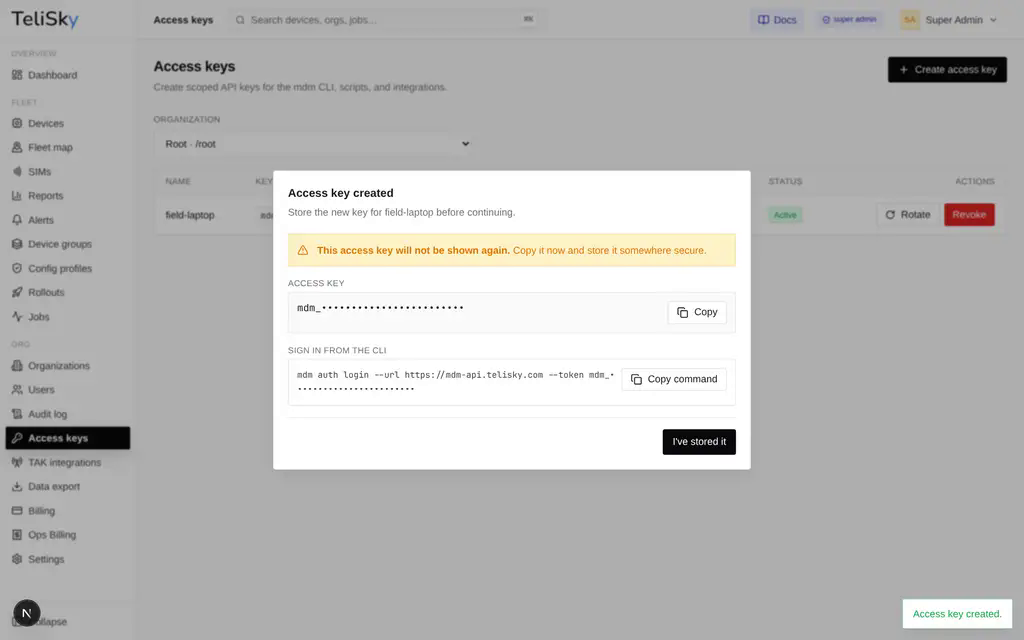
- Select Create access key, then copy the key immediately — it is shown only once. The dialog also shows a ready-to-paste sign-in command.
3. Sign in
Section titled “3. Sign in”Paste the command from the reveal dialog, or run:
mdm auth login --url https://mdm-api.telisky.com --token mdm_your_key_hereConfirm what the key can do:
mdm auth statusThe output shows which organization the key belongs to and the exact scopes it holds.
For CI pipelines and agents, skip auth login entirely and set environment variables instead:
export MDM_BASE_URL=https://mdm-api.telisky.comexport MDM_TOKEN=mdm_your_key_here4. First commands
Section titled “4. First commands”mdm devices list # fleet at a glancemdm devices get RC500-12345 # one device, by serial, name, or IDmdm jobs create --device RC500-12345 --kind rebootmdm jobs list # watch the job completemdm --help # every command groupmdm devices --help # every device actionOn a terminal you get readable tables. When you pipe the output, you get plain JSON for the same command — ready for jq or any script:
mdm devices list --json | jq '.items[] | {name, status}'Scripts and AI agents
Section titled “Scripts and AI agents”The CLI is designed so automation can discover and use it without guesswork:
mdm commands --jsonlists every command with its arguments, flags, required scope, and the API route behind it.mdm docs agentsprints the full machine-friendly usage contract.- Exit codes are consistent:
0success,2usage error,3sign-in problem,4missing scope,5not found,6rejected input,7plan limit. - Destructive commands (delete, revoke, cancel) require
--yeswhen run non-interactively, so scripts must be explicit about danger.
Point your agent at mdm docs agents as its first command and it will learn the rest on its own.
Managing keys over time
Section titled “Managing keys over time”- Rotate a key from the Access keys page to replace its secret without changing its scopes — the old secret stops working immediately.
- Revoke keys you no longer use. Revocation takes effect on the key’s next request.
- The page shows when each key was last used, which makes stale keys easy to spot.
Troubleshooting
Section titled “Troubleshooting”| Symptom | Fix |
|---|---|
mdm: command not found after install | Add ~/.local/bin to your PATH, then open a new shell. |
error: mdm needs Node.js >= 20 | Update Node.js from nodejs.org, then re-run the installer. |
Exit code 3 / “unauthorized” | The key was revoked or rotated, or the token was mistyped. Create or copy a fresh key and run mdm auth login again. |
Exit code 4 / “forbidden” | The key is missing a scope for that command. Compare mdm auth status with the scope shown in mdm <command> --help, then create a key with the right scopes. |
| “Your plan allows N API tokens” | You reached your plan’s access key limit. Revoke unused keys or upgrade your plan under Billing. |