Skip to content

OTA Firmware Updates

The MDM platform supports over-the-air (OTA) firmware updates for managed devices, allowing fleet-wide updates without physical access.

graph LR
  A[Upload Firmware] --> B[Deploy to Fleet]
  B --> C[Download on Device]
  C --> D[Flash & Reboot]
  1. Navigate to Firmware → Versions
  2. Click Upload New Version
  3. Fill in version metadata:
    • Version number (e.g., 1.52.1)
    • Release notes
    • Target device model
    • Minimum compatible version (optional)
  4. Upload the .bin file
  5. The platform computes and stores the SHA256 checksum

The firmware page shows all uploaded versions:

ColumnDescription
VersionSemantic version number
ModelTarget device model
Upload DateWhen firmware was added
SizeFile size
DevicesNumber of devices running this version
StatusActive / Deprecated / Latest
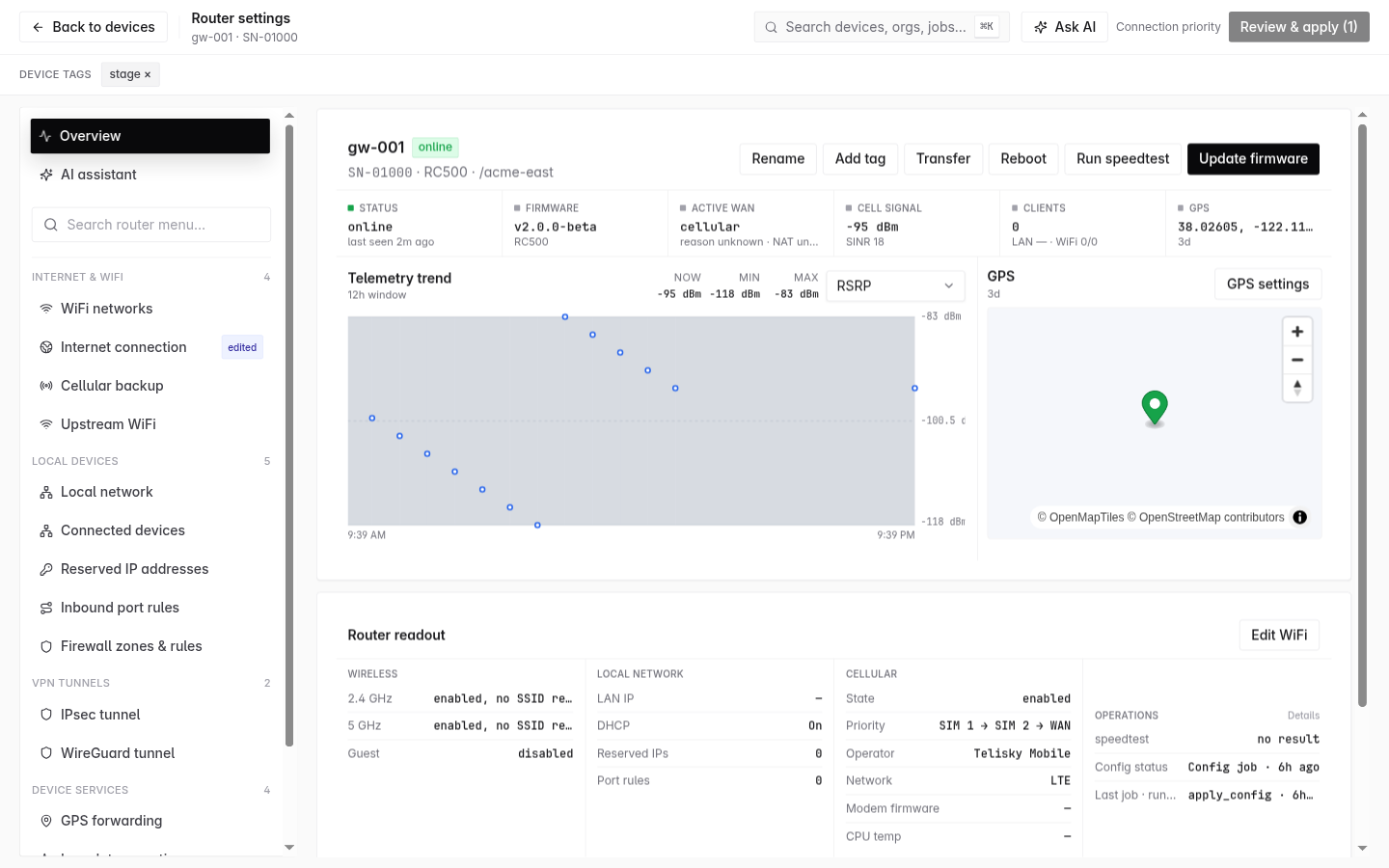
  1. Go to device detail → Commands tab
  2. Click Firmware Update
  3. Select the target firmware version
  4. Choose options:
    • Preserve configuration (default: yes)
    • Schedule (immediate or delayed)
  5. Click Deploy
  1. Navigate to Firmware → Deploy
  2. Select the firmware version
  3. Choose targets:
    • All devices on a specific model
    • Devices with tag (e.g., region:us-west)
    • Selected devices from a list
  4. Configure rollout strategy:
    • Immediate — All devices at once
    • Staged — Percentage-based rollout
  5. Click Start Deployment

For large fleets, use staged rollout to reduce risk:

StagePercentageWait Time
Canary5%1 hour
Early25%4 hours
Majority50%12 hours
Complete100%

Between stages, monitor for:

  • Increased offline rates
  • Error reports
  • Telemetry anomalies

If issues are detected, pause or abort the rollout.

When a device receives a firmware update command:

  1. Receive — MQTT message on commands/firmware with download URL
  2. Download — Device downloads firmware to /tmp
  3. Verify — SHA256 checksum validation against expected hash
  4. Acknowledge — Device reports “update starting” to platform
  5. Flashsysupgrade writes firmware to storage
  6. Reboot — Device restarts into new firmware
  7. Report — After boot, device reports new firmware version
PhaseDuration
Download30s – 5min (depends on connection)
Verify< 5s
Flash60 – 90s
Reboot30 – 60s
Total2 – 7 minutes

The deployment dashboard shows real-time progress:

StatusMeaning
QueuedUpdate command sent, waiting for device
DownloadingDevice is downloading firmware
InstallingDevice is flashing firmware
RebootingDevice is restarting
SuccessDevice reported new version
FailedDownload, verify, or flash failed
TimeoutDevice didn’t complete within 15 minutes

If an update fails:

  • Device remains on current firmware (safe — flash only proceeds after verification)
  • Platform logs the failure reason
  • Admin can retry the update or investigate
  • Automatic retry available (configurable: 1-3 retries with backoff)

Cellular modem firmware is updated separately from router firmware:

  1. Modem firmware is uploaded to the platform
  2. Update command sent to device
  3. Device uses QFirehose protocol to flash the modem
  4. Modem restarts and re-registers on network
  5. Device reports new modem firmware version
  • Test on a single device first before fleet deployment
  • Use staged rollout for production fleets
  • Monitor after deployment for unexpected behavior
  • Keep previous versions available for quick rollback
  • Document release notes for each firmware version
  • Set minimum version requirements to prevent incompatible downgrades