
Firmware Updates
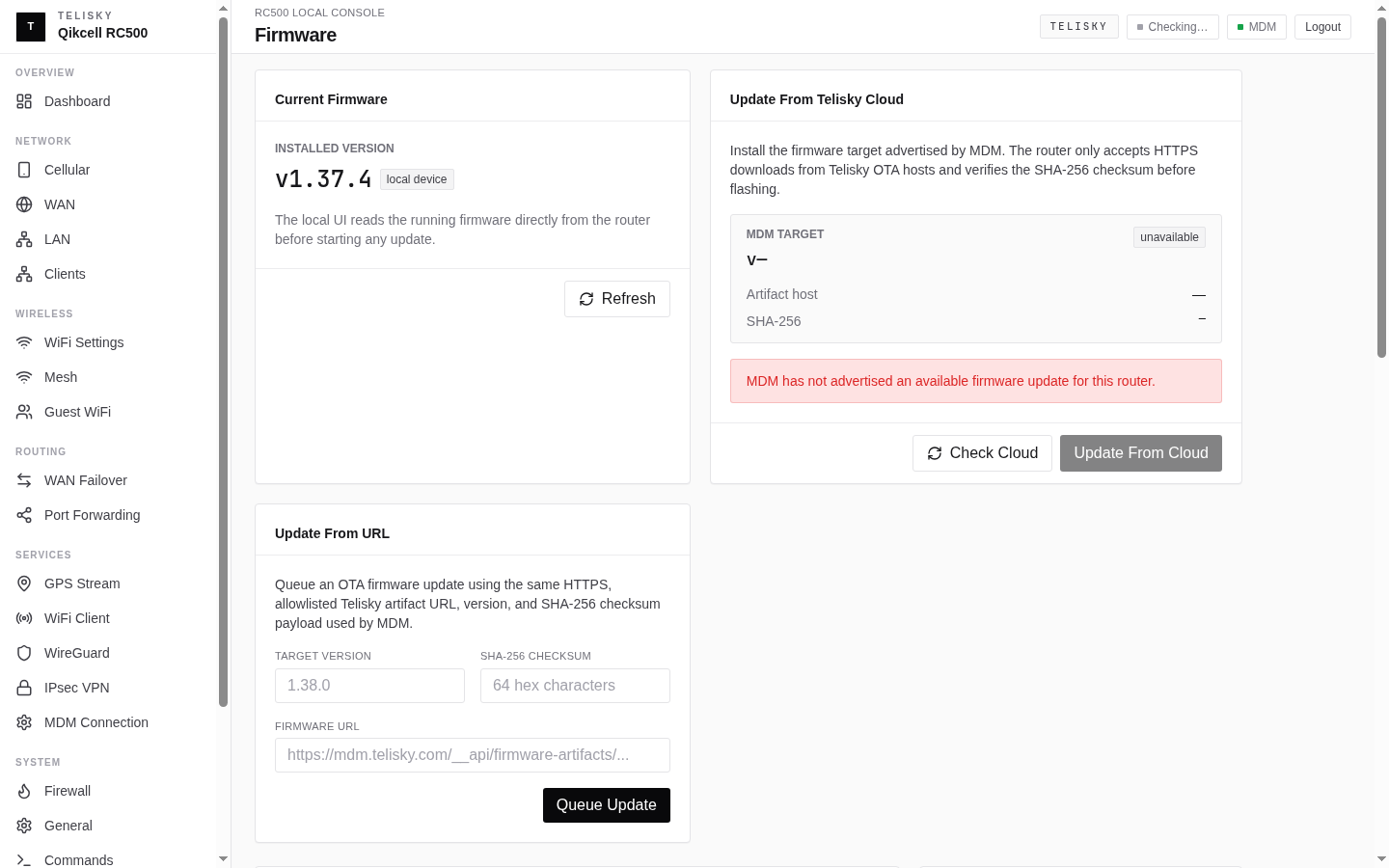
Firmware is the router’s software. Use the cloud portal for approved remote firmware updates when the router is online. Use the local Web UI when you are on-site with one router, especially for a local file upload or a firmware URL supplied through an approved Telisky support channel.
See the current version under System - Firmware locally, or on the device’s page in the cloud portal.
Update methods
Section titled “Update methods”Approved cloud update
Section titled “Approved cloud update”Use the cloud portal when Telisky publishes a firmware version for your devices or when an approved cloud upload workflow is available to your role.
- Open the device in the cloud portal, or create a firmware rollout for a group.
- Choose the approved target version.
- Start the update. It becomes a job you can track.
The customer cloud UI does not expose a general “update from URL” form. URL-based cloud updates are API/support-led only and require the approved URL plus checksum details. If Telisky Support gives you a firmware URL workflow, follow their exact instructions and do not paste the URL or checksum into public channels.
From a file (local Web UI)
Section titled “From a file (local Web UI)”For a single router you can reach on-site:
- Open System - Firmware.
- Choose the firmware file supplied by Telisky.
- Start the update and wait for the router to apply it and reboot.
This method keeps your settings.
From a URL (local Web UI)
Section titled “From a URL (local Web UI)”The local Firmware page can fetch an update from a URL you provide: enter the version, firmware URL, and SHA-256 checksum, then start the update. Use this only for firmware sources Telisky approves. The router downloads, verifies, and applies the update.
Before updating
Section titled “Before updating”- Make sure the router has a stable internet connection, or a stable local connection for a file update.
- Make sure power will not be interrupted.
- Pick a low-impact time - the router reboots and briefly drops connectivity.
- Confirm the firmware source came from Telisky or an approved customer support process.
During the update
Section titled “During the update”The router downloads or receives the firmware, applies it, and reboots.
After the update
Section titled “After the update”- The router reconnects and reports its new firmware version.
- Confirm the version on the Firmware page or on the device’s page in the cloud portal.
Rollback
Section titled “Rollback”The RC500 does not switch back to the previous firmware automatically. To roll back, apply a previous known-good firmware version through an approved cloud or local update method.
Modem firmware
Section titled “Modem firmware”The cellular modem has firmware separate from the router. Router firmware and cellular modem firmware are updated separately when those workflows are available. Follow Telisky Support’s instructions for modem firmware; do not use router firmware files for modem firmware.