
Quick Start Summary
Use this page as a one-screen reminder after you understand the First router setup checklist. If this is your first Telisky deployment or anything does not match what you see, start with the full checklist instead.
Who this is for
Section titled “Who this is for”This summary is for a customer owner, customer admin, or installer coordinating the first RC500 setup after the responsibilities are clear. You do not need to use the API or understand router internals to finish this path.
What you need
Section titled “What you need”- A Telisky invite email or an active Telisky account.
- The RC500 router, power supply, antennas, and any install packet supplied with your order.
- The router label, serial, MAC, or deployment packet so you can identify the correct router.
- An MDM attach code if your Telisky contact or admin asks you to attach the router during setup.
Do not share your Telisky cloud password with an installer. If an installer needs access, invite them with installer access or give them only the router label/work-order details they need.
The setup path
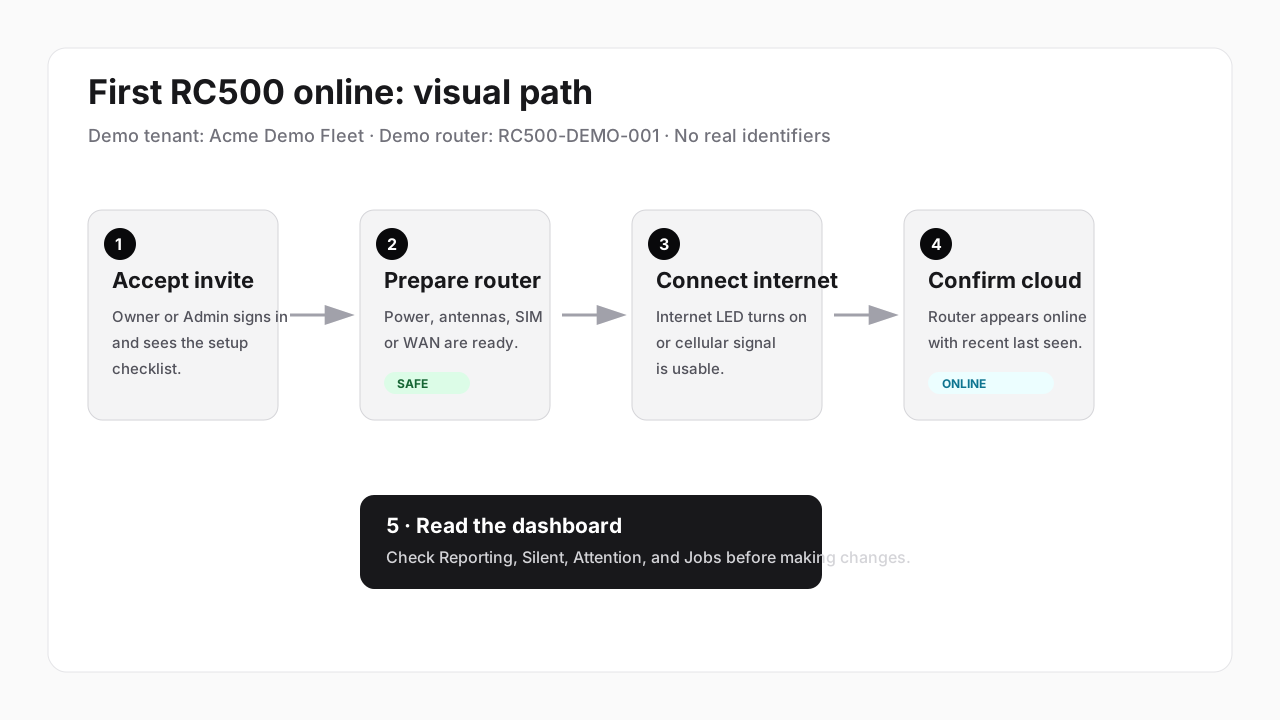
Section titled “The setup path”- Accept your invite. Open the invite email, set your password, and sign in to the Telisky cloud portal. See Accept your invite.
- Prepare the router. Connect antennas, insert the SIM if the router will use cellular, connect the WAN cable if you have wired internet, and power on the RC500. See Prepare your RC500.
- Get the router online. Wait for the internet path to come up. Use the local Web UI only if on-site setup is required. See Get the router online.
- Attach the router if needed. If your setup uses an MDM attach code, generate the code in the cloud portal and enter it in the router’s local Web UI. See Attach a router to the cloud.
- Confirm the cloud connection. In the cloud portal, open Devices and find the router by the name, label, serial, MAC, or other identifier supplied for your deployment. See Confirm cloud connection.
- Check dashboard health. Open Dashboard and the router detail page. Confirm last seen is recent, the expected internet path is active, and there are no failed jobs needing action. See First dashboard health check.
Success looks like
Section titled “Success looks like”You are done with first setup when:
- You can sign in to cloud.telisky.com.
- The router appears in Devices for the expected organization or site.
- The router shows online or has a recent last seen time.
- Dashboard does not show urgent attention for that router.
- You know who to contact and what to send if the router later goes offline.
If you get stuck
Section titled “If you get stuck”- Invite link expired or sign-in does not work: see Sign In & Account Help.
- Router has no internet: see Internet & Cellular.
- Router is online locally but not in the portal: see Attach a router to the cloud, Confirm cloud connection, and Router offline or silent.
- You need Telisky help: see Contact Telisky Support.
Next steps
Section titled “Next steps”- Telisky cloud portal vs Local Web UI - decide where to make each change.
- Devices - manage the router from the Telisky cloud portal.
- Network - configure WAN, LAN, DHCP, and failover.
- Router offline or silent - what to check if it does not appear.